Interview Support AI
A Windows app that follows the conversation on your computer as live text, and drafts a clear answer, with a code example when it helps, the moment you ask for one.
Windows 10 and 11 Speech recognition on your PC
What it does
Your calm co-pilot for the hard questions
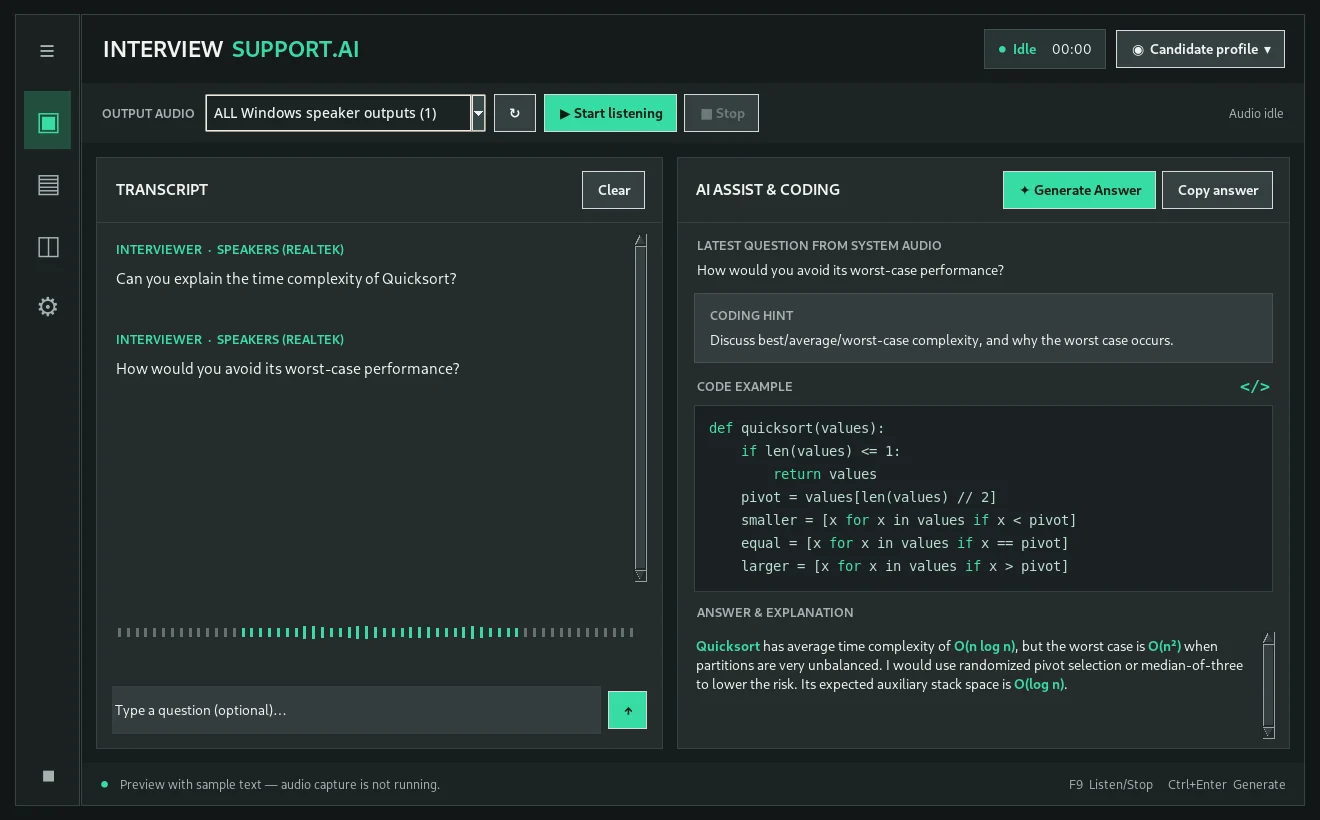
Everything happens in one window: the transcript on the left, help on the right. You stay in control of every answer.
Live audio capture
Captures what your speakers play (all outputs or one you choose), not your microphone. Start and stop with a click or F9.
Transcribed on your PC
Speech is turned into text locally with faster-whisper on the CPU. Audio is never saved to a file and never leaves your computer.
Answers only when you ask
Nothing is sent to the AI until you click Generate Answer (or press Ctrl+Enter). Select a passage first to focus on it.
Grounded in your profile
Import your résumé, the job description and company notes, and set your answer rules. Answers draw on them instead of inventing experience.
Code when it helps
For technical questions the answer can include a code sample, shown in its own viewer next to a short hint and the explanation.
Your Datamart AI account
Sign in with your email and password, pick a model of your plan and see the messages left today. Ollama and OpenAI-compatible endpoints work too.
Practise with confidence
Prepare for the questions that matter
Use it with mock interviews, recorded practice questions or study videos: follow along as live text, then compare your own answer with a clear, structured one that draws on your profile.
- Turn any spoken question into text you can review
- See how a strong answer is structured, with code where it helps
- Keep your résumé and the job description at hand while you practise

How it works
Ready in four steps
Set up your profile
Open Candidate profile, paste or import your résumé, the job description and company details, and save.
Sign in
In Settings, sign in with your Datamart AI account. The models of your plan fill the model list.
Start listening
Choose the speaker output and click Start listening. The transcript and the latest question update live.
Generate an answer
Click Generate Answer when you are ready. It streams in on the right, with code shown separately.
Download
Get the app
The download is the app with its setup scripts. The first start installs what it needs automatically.
Install in three steps
- Extract the ZIP and open the
InterviewSupportDesktopfolder. - Double-click
SETUP_AND_RUN_WINDOWS.bat. It prepares Python, installs the libraries and starts the app. Internet is needed this first time. - Afterwards, open the app with
START_WINDOWS.bat.
Requirements
- Windows 10 or 11, 64-bit
- Python 3.12 x64, or none: the setup can use uv to fetch a private Python
- A Datamart AI account, or an Ollama or OpenAI-compatible endpoint
%USERPROFILE%\InterviewSupportDesktop\; your password is never stored. Answers are suggestions: check them before you rely on them.
One account for the web, your apps and your desktop
The desktop app uses the same plan and messages as the chat. Create your free account to get started.