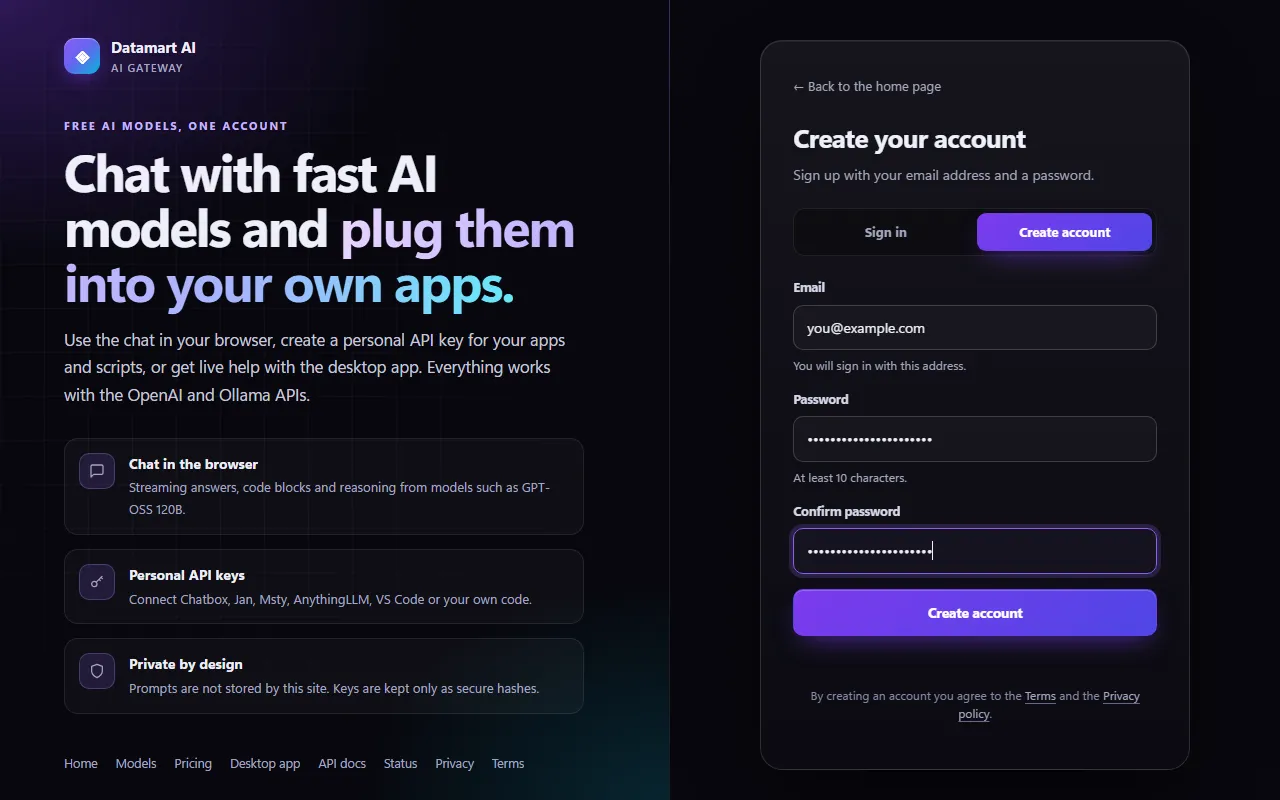
1. Create your account
- Open the site and choose Create account.
- Enter your email address and a password of at least 10 characters (twice).
- If the site asks for it, enter the 6-digit code we email you (and, if asked, the one we text to your phone). Codes are valid for 10 minutes.
- Some sites approve new accounts first: then you can sign in as soon as the administrator has approved yours.
2. Your dashboard
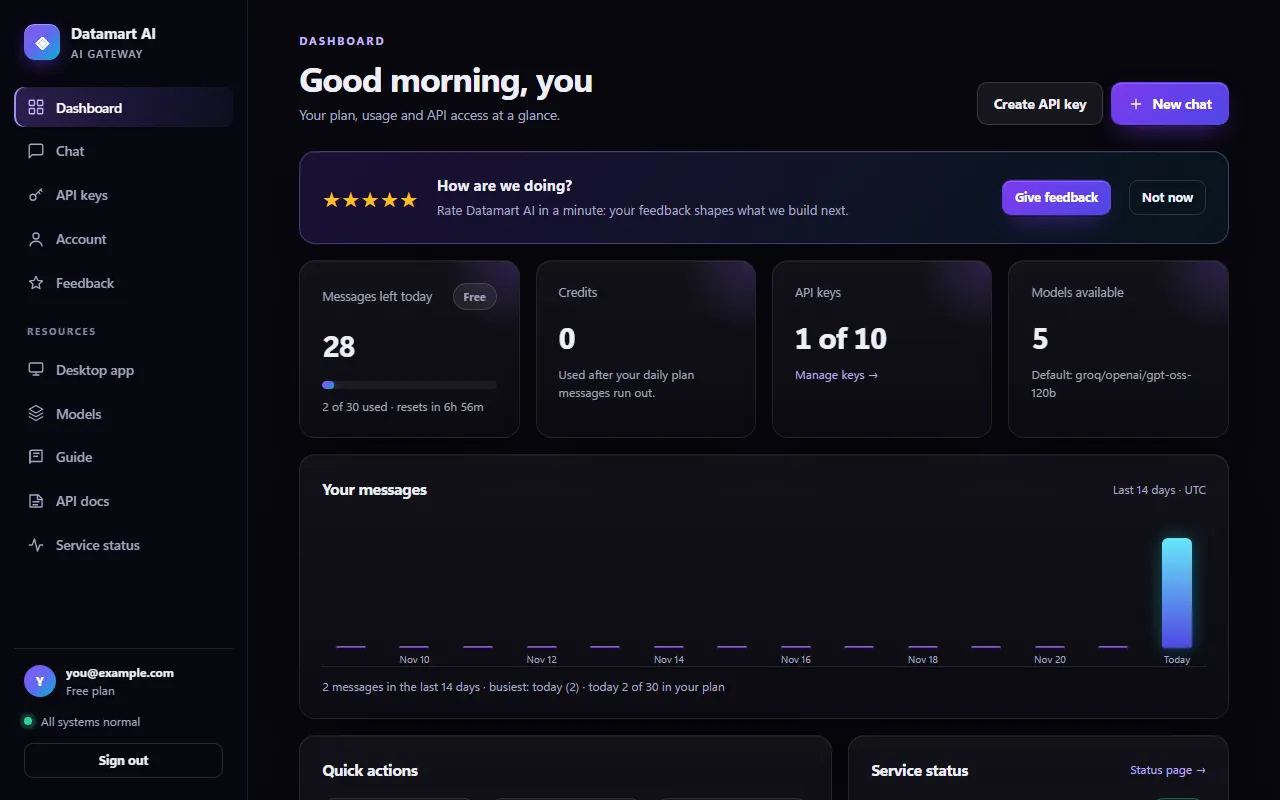
After signing in you land on your dashboard. It shows at a glance:
- Messages left today: your plan's allowance. It resets every day at 00:00 UTC (the bar shows how much you have used).
- Credits: extra messages, used only after the day's plan messages run out.
- API keys and Models available, plus the service status and quick actions.
- Your messages: a chart of how many messages you sent each day over the last 14 days (today in blue), with today's count against your plan.
3. Chat with a model
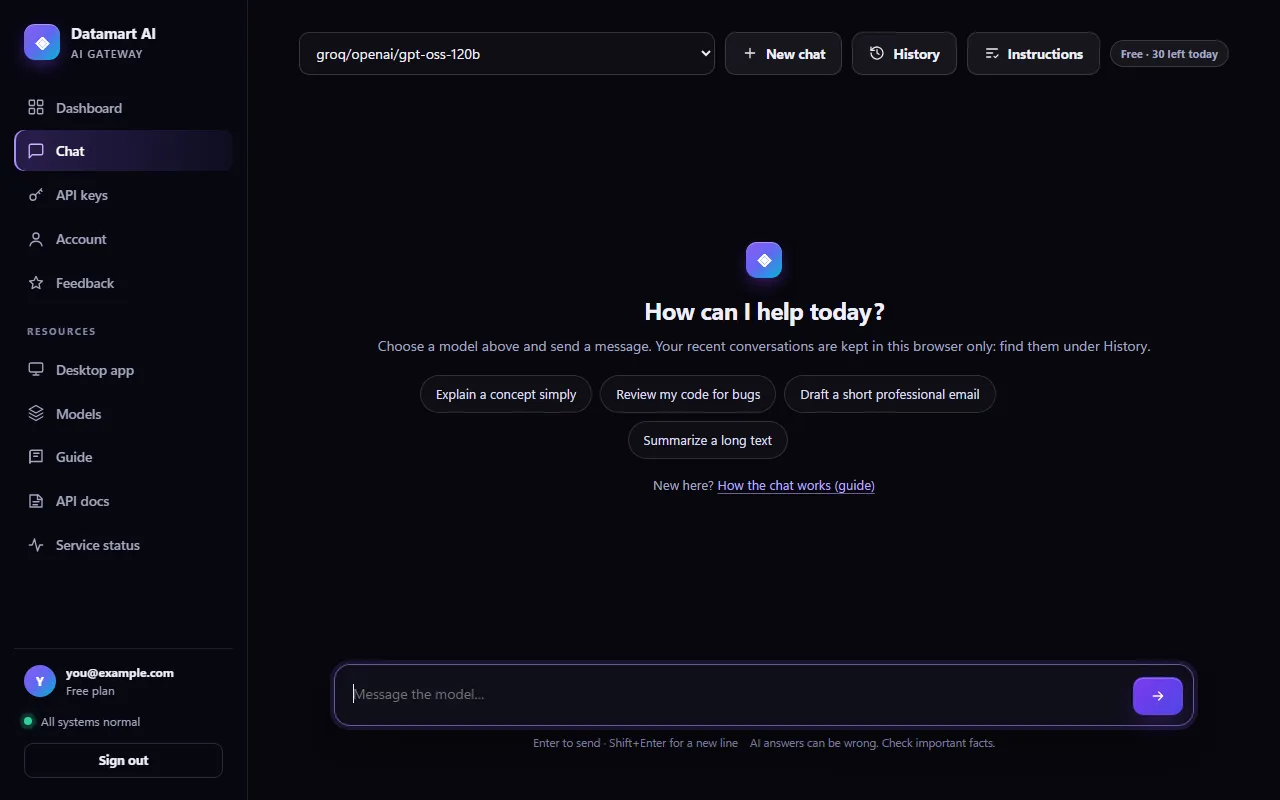
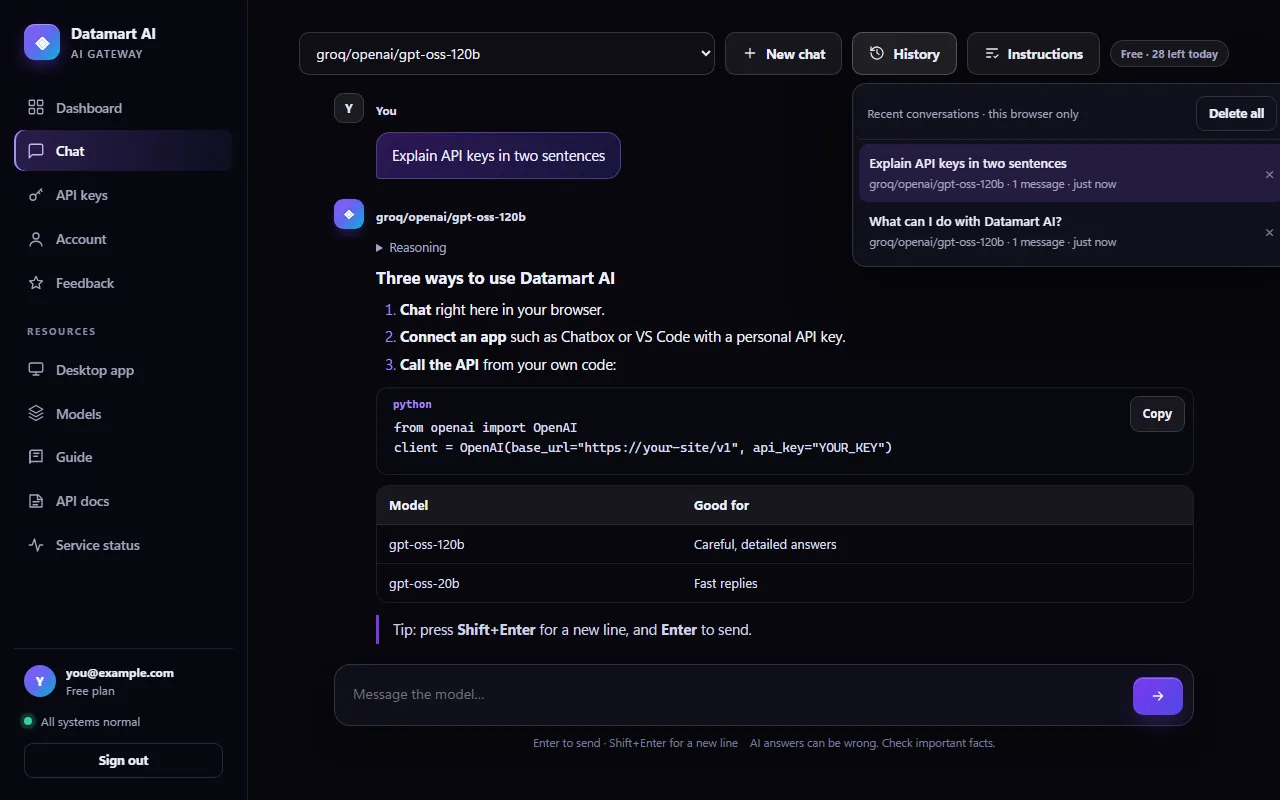
- Open Chat and pick a model at the top (the first one is a good default).
- Type your message and press Enter to send. Shift+Enter starts a new line.
- The answer appears as it is written. Press Stop to end it early.
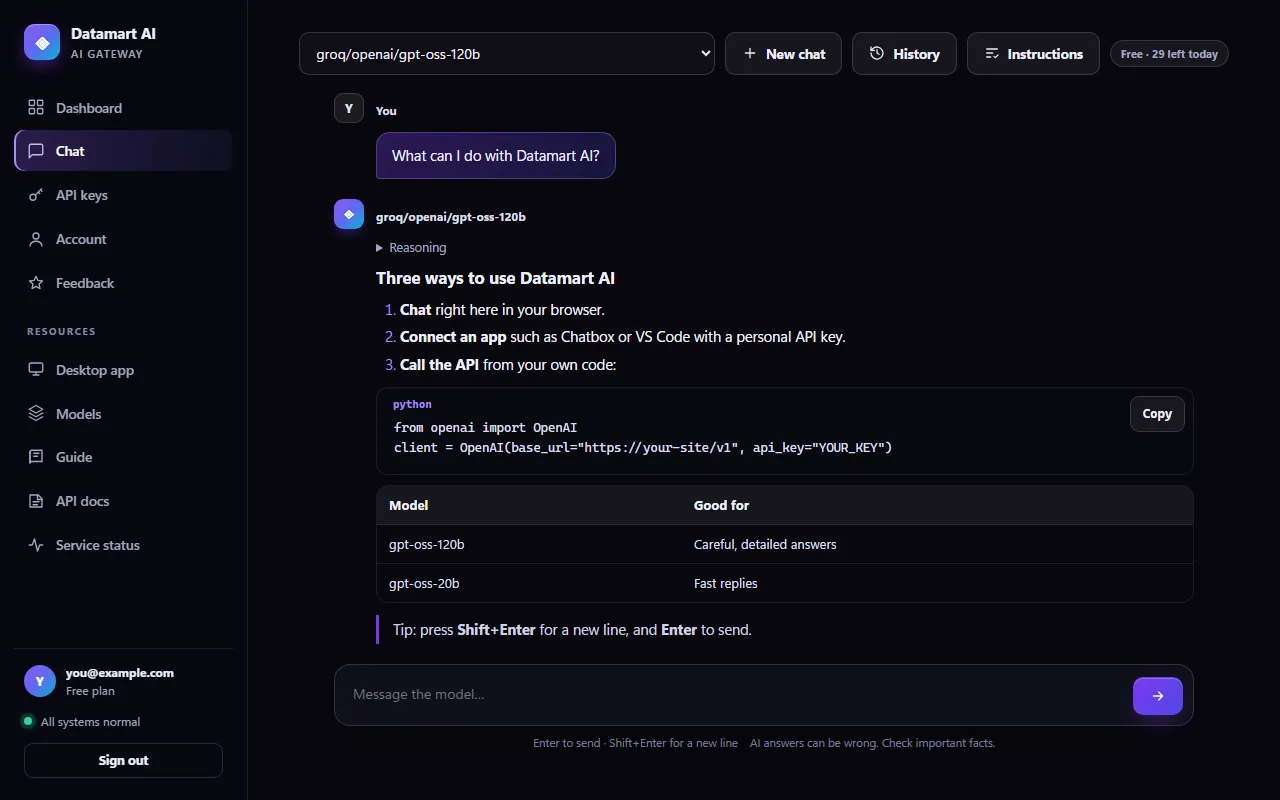
- Reasoning: some models think before they answer. Click Reasoning to read how the model got there.
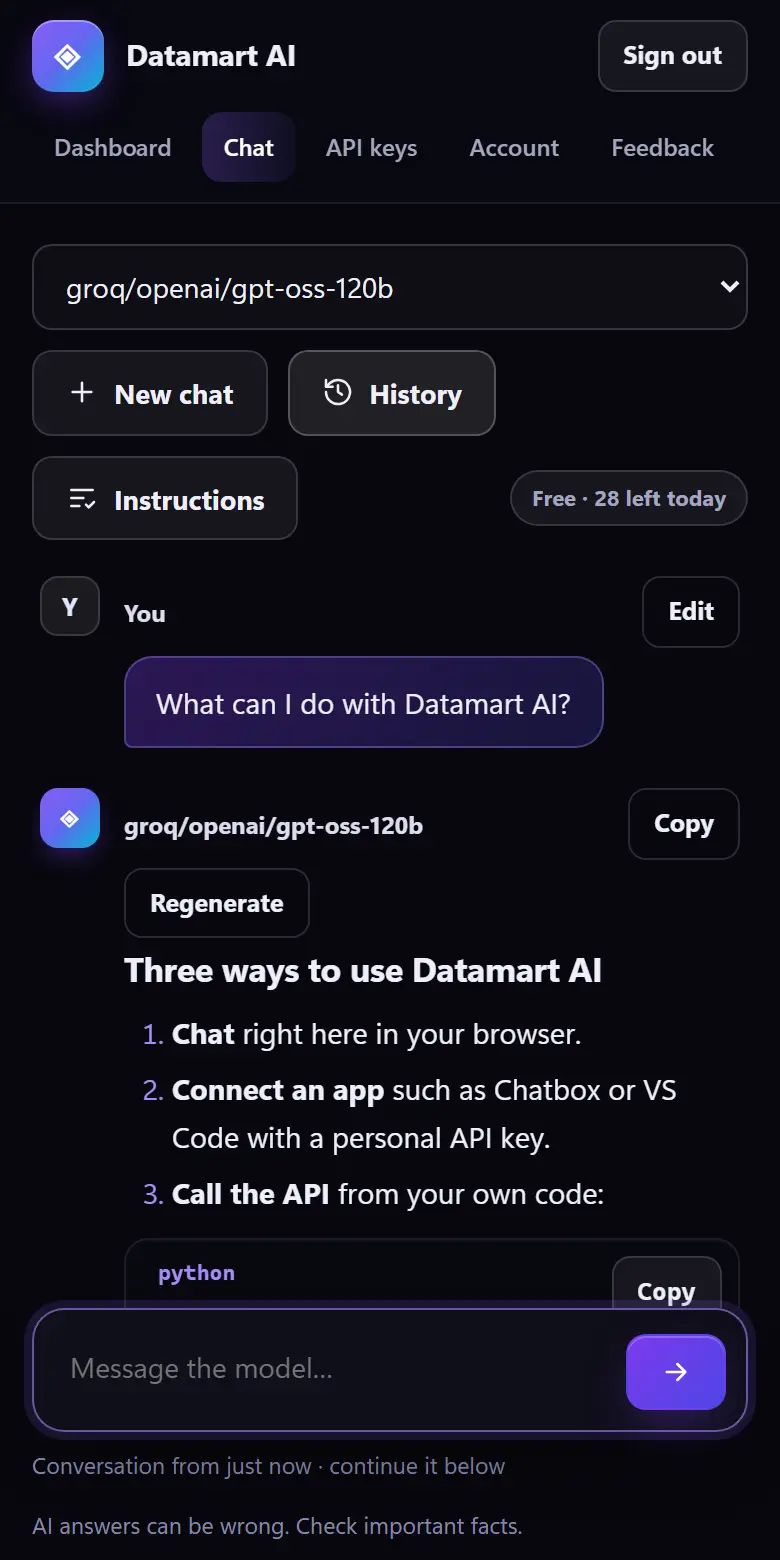
- Regenerate (next to the last answer) asks for a new answer. Edit (next to your last message) puts it back in the box so you can change it and send it again.
- No answer because the model is busy? Pick another model at the top and click Try again: you do not have to type your message again.
- Instructions (next to History) tells the model something it should always know or do, in every conversation: for example "Answer in Spanish" or "I am a beginner, explain step by step". Save them, and an On badge shows they are used; untick Use them in my messages to pause them. They are kept in this browser only.
- New chat starts a fresh conversation; the model then does not see the earlier messages.
- The pill at the top right shows how many messages you have left today.
AI answers can be wrong. Check important facts, and do not share passwords, secrets or confidential information in your messages.
4. Find earlier conversations
Click History to see your 30 most recent conversations. Click one to reopen it and carry on where you left off; × deletes one, Delete all deletes them all.
5. On your phone
Everything works on a phone too: the menu sits at the top, and the chat fills the screen. Add the site to your home screen from your browser's menu for quick access.
6. Use it in your apps
With a personal API key you can use the same models in desktop apps (Chatbox, Jan, Msty, AnythingLLM, VS Code with Continue, Open WebUI and others) and in your own programs. Requests with your key use your plan's messages, just like the chat.
- Open API keys, give the key a name you will recognise (for example "Laptop - Chatbox") and click Create key.
- Copy the key straight away: for your security it is shown only once. Store it like a password.
- In your app, add a custom provider with the settings below.
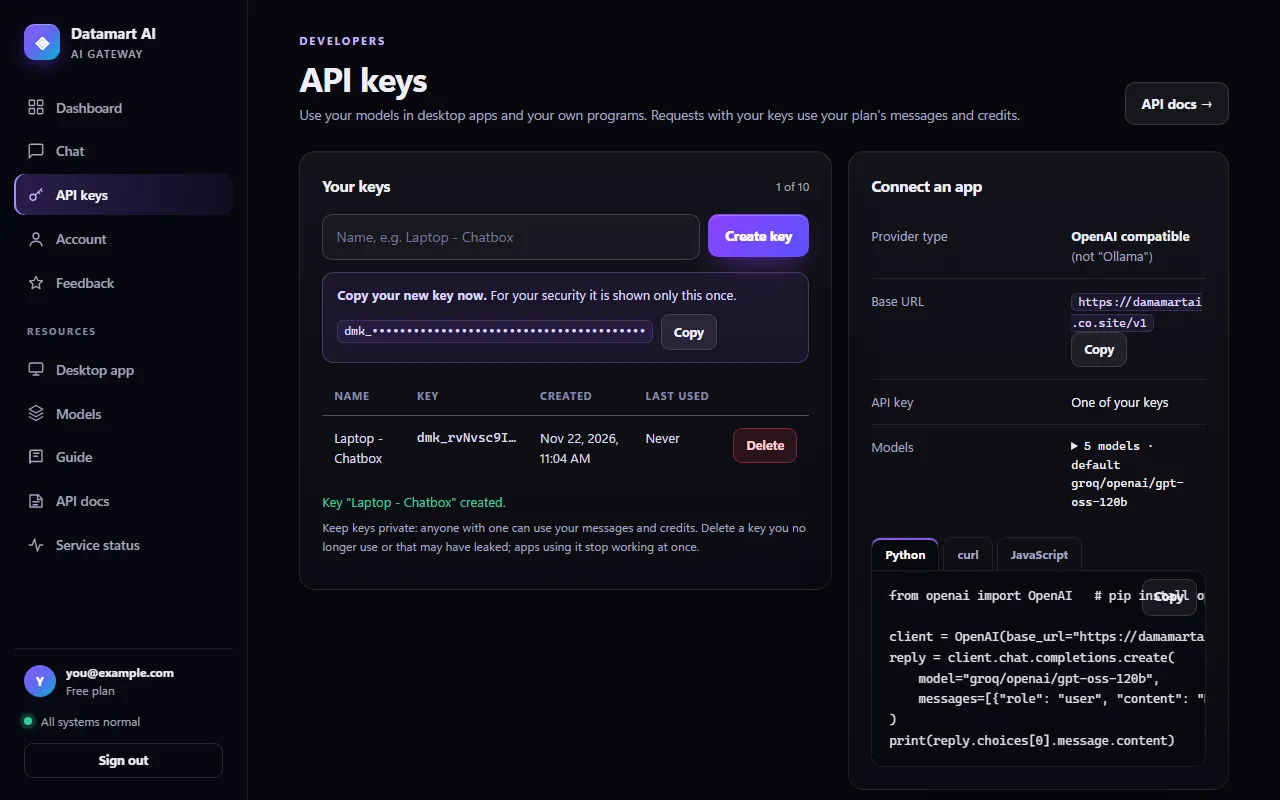
| Provider type | OpenAI compatible (also called "OpenAI API" or "Custom OpenAI"); not "Ollama" |
| Base URL / API host | BASE_URL/v1 |
| API key | The key you just copied |
| Model | A model name from the chat's list, such as groq/openai/gpt-oss-120b |
If an app adds /v1 by itself, leave it off the address. Lost a key, or think someone else has it? Delete it on the API keys page (apps using it stop working at once) and create a new one. Programmers: the API documentation has examples in curl, Python and JavaScript.
7. Account and security
The Account page shows your details and plan, and lets you look after your account yourself.
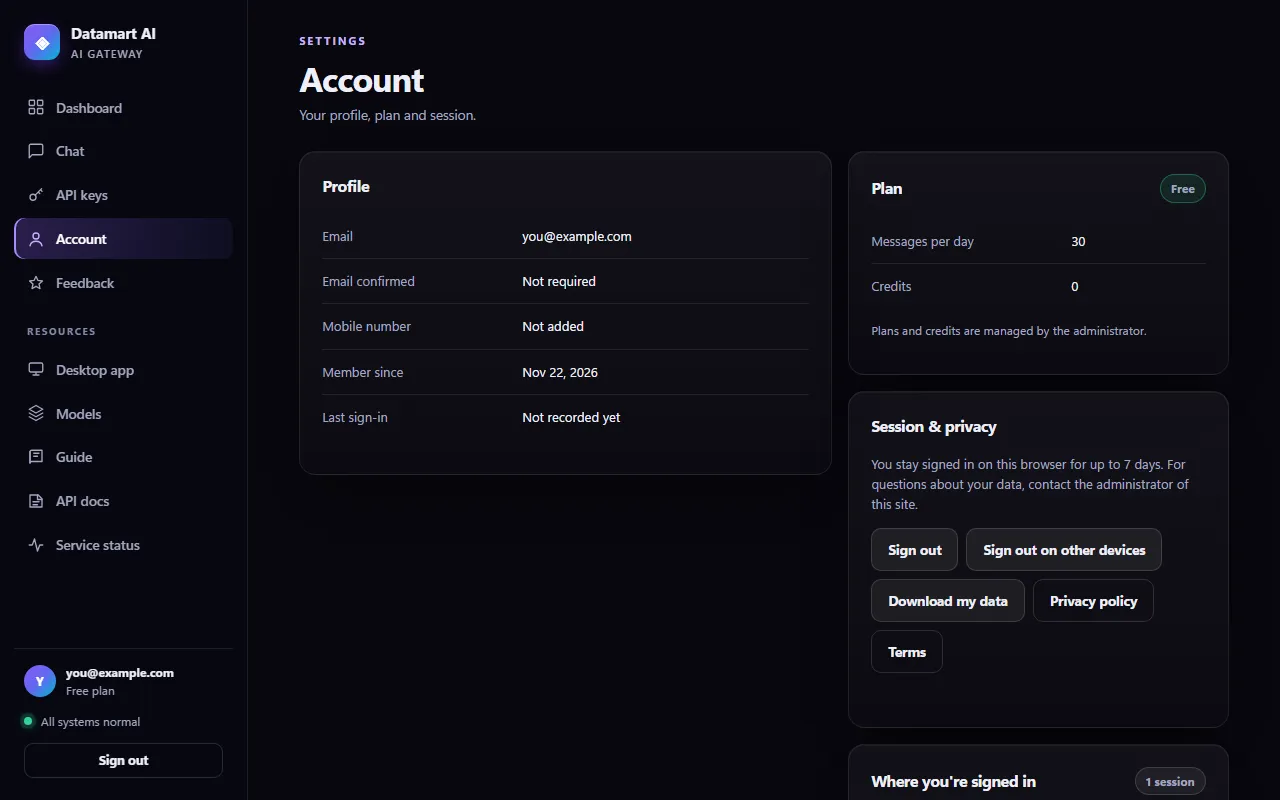
- Sign out on other devices: ends your sessions everywhere else, for example after using a shared computer.
- Where you're signed in: every browser and device signed in to your account (such as "Safari on iPhone"), when it signed in and when it was last used. Sign out next to one ends just that session. Do not recognise one? Sign it out and change your password.
- Download my data: a copy of everything we store about your account, plus the conversations in your browser, as a file.
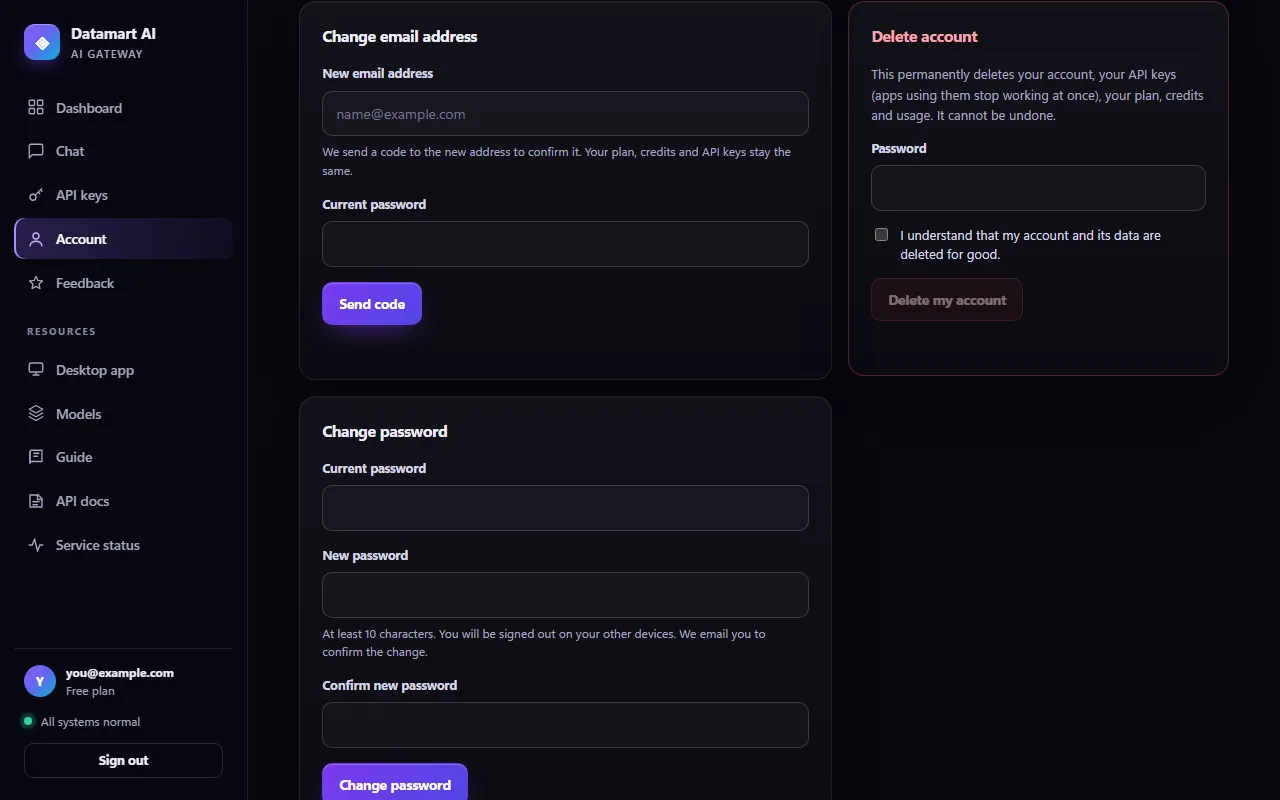
- Change email address: enter the new address and your password, then the code we email to the new address. Your plan, credits and API keys stay the same, and your old address gets a notice.
- Change password: enter your current password and a new one. You are signed out on your other devices, and we email you to confirm.
- Delete account: deletes your account, API keys and usage for good. Tick the box and enter your password to confirm.
8. Forgot your password?
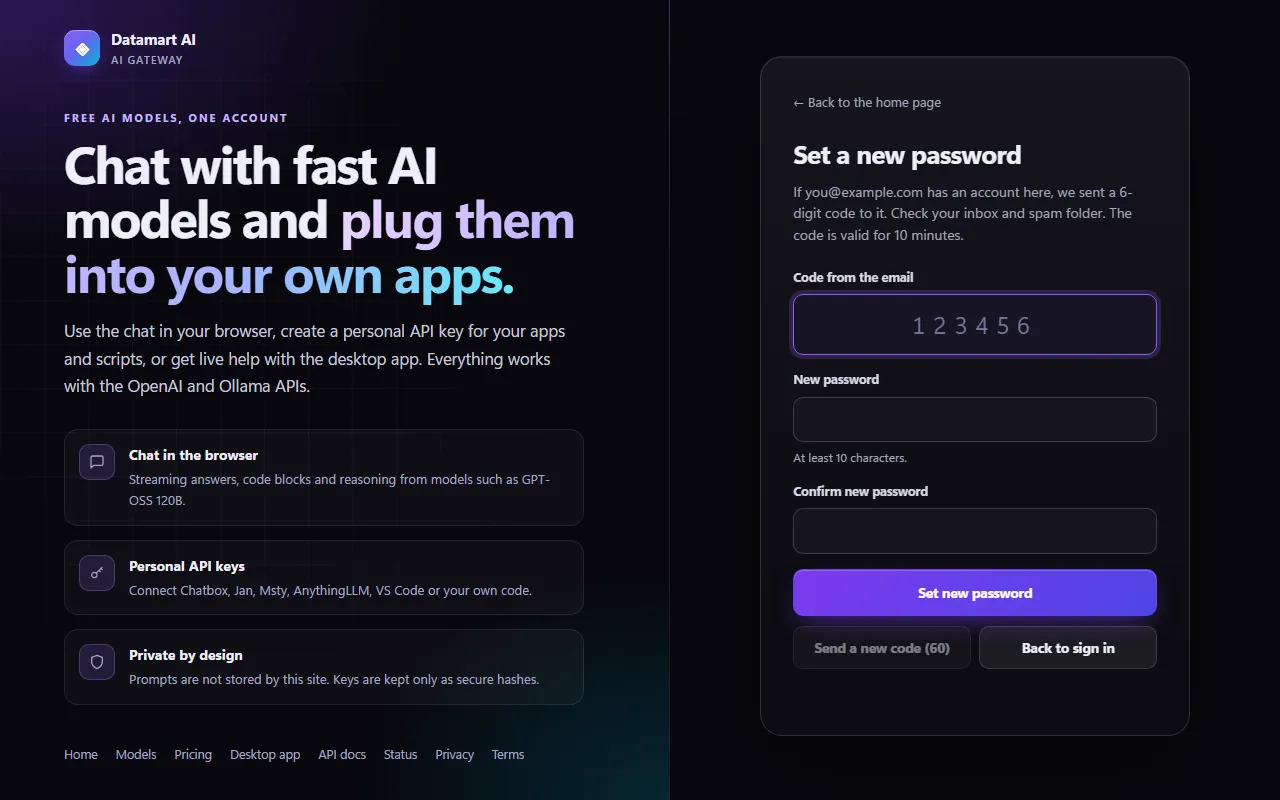
- On the sign-in page, click Forgot password? and enter your email address.
- We email you a 6-digit code (check your spam folder too). Enter it with a new password.
- You are signed in straight away, and signed out on your other devices.
Common questions
"The model is busy or has used up its free limit"
The models run on free tiers with their own limits per minute and per day. Wait a minute and try again, or pick another model in the list. The message is not counted when no answer arrives.
"You have used all messages of your plan today"
Your plan's messages come back at 00:00 UTC; your dashboard shows when. Need more? Ask the administrator for credits or a bigger plan.
"Your account is waiting for administrator approval"
This site approves new accounts by hand. You can sign in as soon as yours is approved.
I did not get the code
Check your spam folder, make sure the address is right, and use Send a new code after a minute. Each code works once and for 10 minutes.
Is my chat private?
The site does not store your messages; they go to the AI provider to be answered, and your history stays in your browser. The privacy policy has the details.
Is the site working?
The status page shows whether the site, the AI models and sign-in are working right now.